AI Bike Mirror turns a phone mounted on the back of a bike into a smart rear-view camera.
It streams live rear-facing video over WiFi (as an MJPEG stream any browser or the companion Viewer app can watch), while running on-device object detection (YOLOv8n) to spot cars, trucks, buses, and motorcycles approaching from behind.
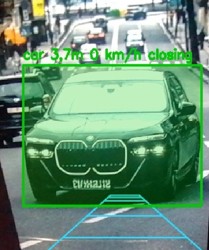
For each vehicle it tracks, it estimates distance and closing speed from how the vehicle’s size and position change frame to frame, and draws a perspective-corrected grid on the video representing the lane directly behind the bike.
If a vehicle enters that grid and is genuinely closing the distance (not just parked or passing by), its green box turns orange and the phone sounds a loud alarm — giving the rider an audible heads-up without needing to look at a screen.
Disclaimer: This is a hobby /experimental project, not a certified safety device — the distance and speed figures are rough monocular estimates, not measurements from a radar or depth sensor.
Instructions for use:
1 Open the app and grant permissions
Launch AI Bike Mirror on the phone you’re mounting on back of the bike. The first time, allow the camera and notification permissions it asks for.
2 Mount the phone facing backward
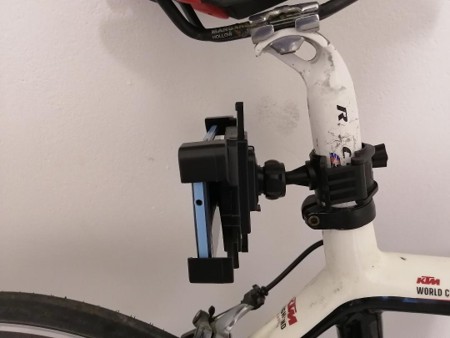
Fix it to the bike (seat post) with the camera pointed behind you. A mount that allows 360-degree adjustment is recommended. It helps to ensure no tilt. Additionally, its recommended to slightly point to the phone’s camera to the side of the approaching traffic.
3 Start the phone’s hotspot
Navigate to the phone’s settings and initiate the hotspot.
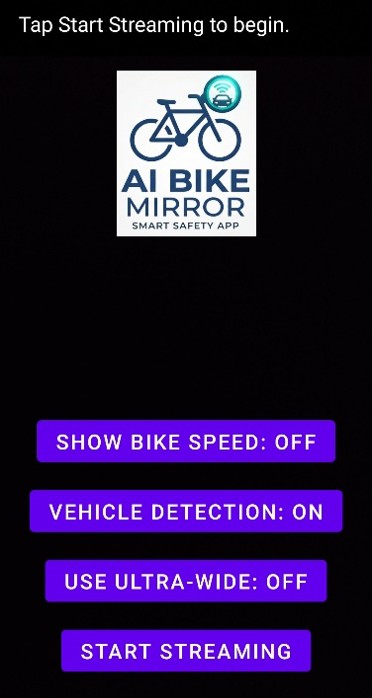
4 Tap Start Streaming
The app shows an address on-screen, e.g. http://192.168.43.1:8080. That’s the page you’ll open on your other phone to watch the video.
5 Connect your viewing device to the hotspot
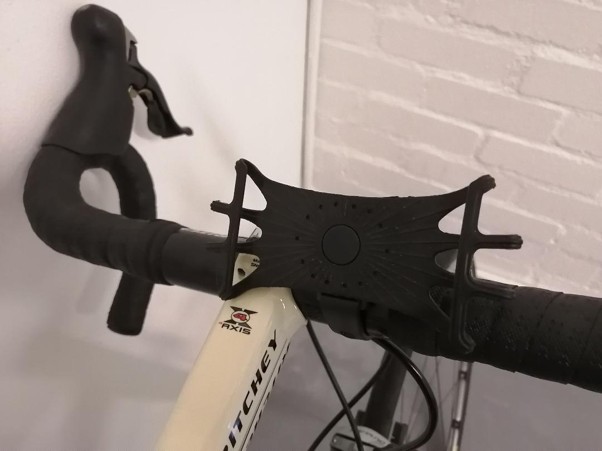
Connect the 2nd (viewing) phone to the hotspot. Mount the phone to the handlebars.
6 Open the address in a browser
Type the address the app showed you into any browser’s address bar and go. It’s a plain webpage with the live video — no app needed on the viewing device. Additionally, allow the phone to auto-rotate to see the streamed video in landscape. Zooming slightly will allow you to move the address bar out of the view.
7 Watch the overlay while riding
Tracked vehicles get a green box with annotated distance and closing speed. One that enters the marked blue grid (roughly a 1m wide area from 2-25m behind your bike) and is genuinely closing the gap turns orange — and the bike phone sounds a repeating alarm at the same moment, so you don’t need to be looking at the screen to know. Additionally, if a car approached at greater than 10km/h relative to your speed it will cause the box to turn from green to red and also trigger the alarm.
8 Settings
On the apps phone screen you have the option to: a) Use the camera wide angle lens (recommended). b) Have your speed displayed on the viewing video (your GPS / location needs to be turned on in the phone’s settings. c) Vehicle detection can be turned on and off. With each change the video stream needs to be restarted on each device.
**********************************************************
Privacy policy
Last updated August 09, 2026
This application does not collect or store personal data. For more information please contact John Lazarus on j.lazarus@uct.ac.za
If you installed this application from Google Play, then Google Play does collect some personal data. Please see the privacy policy for Google Play Services here: https://policies.google.com/privacy